



Knowledge Base
DigiCert to Enforce CT Logging for All Public TLS Certificates
Starting June 1, 2026, DigiCert will log all public TLS certificates, including canaries and test certificates, to at least one certificate transparency (CT) log.
CT Logging enforcement affects all DigiCert's public TLS certificates: DV, OV, EV, EU Qualified Website Authentication Certificate (QWAC), and EU QWAC PSD2, and all DigiCert brands: DigiCert®, GeoTrust®, Thawte®, RapidSSL®, and Encryption Everywhere®.
Items covered in this article
- Why is this happening?
- Does this CT logging change affect me?
- What if I don't want my TLS certificates in CT logs?
- How can I check whether a TLS certificate was logged in the CT logs?
Why is this happening?
To promote greater TLS certificate transparency and further enhance Internet security, the Google Chrome Root Program Policy requires that Certificate Authorities (CAs) begin logging all TLS precertificates and final certificates to at least one CT log by June 15, 2026. Learn more about the Google Chrome Root Program Policy.
Background
CT logs strengthen the TLS/SSL certificate ecosystem by creating publicly auditable records of certificate issuance by all webPKI CAs. Learn more about certificate transparency.
Since 2015, Google has required CAs to log Extended Validation (EV) TLS certificates to public CT logs. In April 2018, Google began requiring CAs to also log Organization Validated (OV) and Domain Validated (DV) TLS certificates to public CT logs.
CT logging is required but not enforced
Until now, CT logging was only required if a TLS certificate was intended for use in a browser such as Chrome. Non-logged certificates still worked in browsers but would provide untrusted warnings. With this new requirement, all public TLS certificates must be logged.
Why keep TLS certificates out of CT logs?
In the past, some customers requested that their public TLS certificates be withheld from CT logs if they included domain names that needed to be kept private for branding, privacy, or network security reasons. Going forward, you should use Private TLS for those purposes.
Does this CT logging change affect me?
On June 1, 2026, DigiCert will log all your newly issued public TLS certificates to CT logs, including reissues and duplicates. We will also remove all the CT logging options from CertCentral. More details are below.
You are only affected by the new CT log enforcement if you currently keep TLS certificates out of CT logs. By default, DigiCert logs all public TLS certificates to CT logs. Most DigiCert customers log all their public TLS certificates to CT logs.
Do you log all public TLS certificates to CT logs?
Yes, I log all public TLS certificates to CT logs. Then no action is required. DigiCert will continue to log your TLS certificates to CT logs.
No, I keep some public TLS certificates out of CT logs. Then, this change affects you. Action may be required depending on whether you need to keep TLS certificates out of CT logs from June 1, 2026, onward. This does not affect existing TLS certificates kept out of CT logs before June 1, 2026.
Removing the CT logging “opt out” options from CertCentral
Starting June 1, 2026, DigiCert will make the following changes to CertCentral:
- In CertCentral, DigiCert will remove the following CT logging settings:
- Preference page (Settings > Preferences)
On the Preferences page, in the Certificate Requests section, we will remove the certificate transparency (CT) logging options.
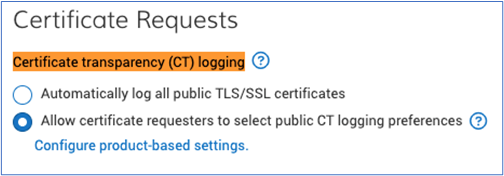
- Product Setting page (Settings > Product Settings)
On the Product Settings page, we will remove the Certificate Transparency (CT) logging options for all DigiCert public TLS certificates.
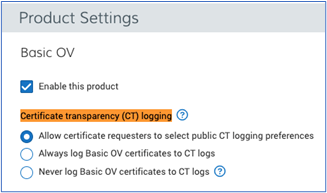
- Preference page (Settings > Preferences)
- CT logging will be turned on for your CertCentral account.
If you asked DigiCert to turn off CT logging for your CertCentral account, we MUST turn it back prior to the compliance deadline of June 15, 2026. All public TLS certificates issued from this account will be logged in CT logs.
To verify whether CT logging is turned off for your CertCentral account, go to Settings > Preferences. In the Certificate Requests section, under Certificate transparency (CT) logging, you will see the "Per request, CT logging was turned off for account" messaging if CT Logging was turned off for your account.
What if I don't want my TLS certificates in CT logs?
We recommend evaluating your current TLS certificate use cases and determining which certificates require public trust versus internal-only trust.
Public trust: If your TLS certificates require public trust, they must be issued by a publicly trusted root hierarchy and logged in CT logs under the new Google Chrome policy. No exception.
Private trust: If your TLS certificates don't require public trust, you can use a private PKI hierarchy if you need to keep your TLS certificates out of public CT logs beyond June 1, 2026. Private PKI hierarchies are not subject to Chrome's CT logging requirements because they do not require public browser trust.
- X9 PKI for TLS certificates
Transition to DigiCert’s X9 PKI for TLS certificates to secure communications involving multiple organizations. Regulated by the ASC X9 standards body, X9 PKI is governed by an independent certificate policy unaffiliated with the browsers, but that ensures interoperability by using a common root of trust. Learn more about X9 PKI and schedule a consultation. - Private Trust
Transition to Private PKI as a service for business needs that are strictly internal. DigiCert can configure and operate a private PKI for your organization, leveraging our operational expertise and security investments. Learn more.
Our team is available to discuss your specific requirements and help you design the right PKI architecture for your needs. Please contact your account manager or DigiCert Support with questions or concerns.
How can I check whether a TLS certificate was logged in the CT logs?
If you are unsure if you have a TLS certificate logged to CT logs, you can check them individually. You can also use the Report library to check whether your TLS certificates are logged in CT logs.
Check whether a TLS certificate was logged to CT logs
- In CertCentral, go to Certificates > Orders.
- On the Orders page, select the order number link of the TLS.
- In the Order # details page, on the Details tab, under Certificate information, expand Additional certificate information.
- Under CT logging, you should see one of the following messages:
- Logged to public CT Logs
- Not logged to public CT Logs
Build an Orders report to identify TLS certificates that are not logged in public CT logs
If you have the Report library feature enabled for your CertCentral account, you can build an Orders report to identify TLS certificates not logged to CT logs. See Build and edit an Orders report.
- In CertCentral, go to Reports.
- On the Report library page, select Build a report.
- On the Build a custom report page, under Choose a report category, select Orders.
- Under Choose your source, select one of the following options and then select Next.
Some options may not be available in your account.- All divisions
- Includes all from {{Primary division name }}
- Choose divisions and select the divisions to include in the report.
- Under the Schedule report, select Once. In the Specify certificate requested date range menu, select All certificates to current date, and then select Next.
- Under Choose columns and filters for orders report, in the Order details section, use the default selections.
- Expand the Certificate details section. Select Logged to public Certificate Transparency (CT) logs.
- Under Set column order, use the default order, sort it alphabetically, or arrange it manually.
- When ready, select Next.
- Under Notifications and access, expand Notify additional users. In the Add another user menu, select other users to notify when the report is generated and ready to download.
- Under Format, select one of the following: CSV, JSON, or Excel.
- In the Report name box, enter a name for the report (for example, Order report for TLS certificates logged to CT logs). Then select Build report.
- On the Report library page, the report Status changes to Ready when CertCentral finishes generating the report.
- When the report is ready, download it.
- Open the file in Excel, and in the Logged to public Certificate Transparency (CT) logs column, use the No filter function to show just the TLS certificates not logged to CT logs.
-

The most-trusted global provider of high-assurance TLS/SSL, PKI, IoT and signing solutions.
-



-
© 2022-2026, DigiCert, Inc. All rights reserved.
Cookie Settings
