


Knowledge Base
Google Chrome Root Removal: DigiCert Trusted Root G4, DigiCert Assured ID Root G2, and DigiCert Assured ID Root G3
Google Chrome Root Removal: DigiCert Trusted Root G4, DigiCert Assured ID Root G2, and DigiCert Assured ID Root G3
Deadline: July 1, 2026
On July 1, 2026, Google Chrome will remove the following roots from its trust store:
- DigiCert Assured ID Root G2
- DigiCert Assured ID Root G3
- DigiCert Trusted Root G4
If you use TLS certificates issued from these root hierarchies and require Google Chrome trust, action may be required before July 1, 2026.
TLS certificates issued from these root hierarchies before July 1, 2026, remain trusted until they expire. Code Signing certificates issued from these root hierarchies are not affected because they do not rely on browser trust.
The Google Chrome Root Program requires Certificate Authorities (CAs) to use dedicated TLS root hierarchies for issuing public TLS certificates. These three roots are being removed from the Google Chrome trust store because they are not dedicated TLS roots. In addition to TLS intermediate CA (ICA) certificates, these roots have also issued Code Signing and TimeStamp ICA certificates.
Learn more about Google Chrome’s root program requirements.
In this article
- Does the root removal affect me?
- What do I need to do?
- What happens when I renew, reissue, or duplicate an existing certificate?
- How to determine whether a TLS certificate is affected
Does the root removal affect me?
Use the information in the table below to determine how you are affected and if action is required. Note that TLS certificates issued before July 1, 2026, are not affected by the root removal and remain trusted by Google Chrome until they expire.
Table: Are you affected?
| If you use TLS certificates and… | Impact |
|---|---|
| Use them for websites or applications that must be trusted by web browsers, such as Google Chrome | Action required. New TLS certificates issued on or after July 1, 2026, must be issued from DigiCert Global Root G2 (RSA) and DigiCert Global Root G3 (ECC) root hierarchies to be trusted in Google Chrome. |
| Do not require Google Chrome trust, for example, mTLS or other non-browser use cases | No action is required at this time. |
What do I need to do?
First, identify any TLS certificates issued from the DigiCert Trusted Root G4, DigiCert Assured ID Root G2, and DigiCert Assured ID Root G3 root hierarchies. Learn how to identify your TLS certificate's issuing root hierarchy.
Next, determine whether the TLS certificate requires browser trust such as Google Chrome.
Some applications, services, and mobile platforms rely on browser trust stores even when they are not accessed directly through a web browser. Before determining that Google Chrome trust is unnecessary, review how the certificate is used within your environment.
Table: Examples of whether browser trust is required for a TLS certificate
| If you use your TLS certificate for… | Is Google Chrome trust required? | What you need to do |
|---|---|---|
| For websites or applications that must be trusted by web browsers such as Google Chrome. | Yes. | Starting July 1, 2026, you must issue new TLS certificates from DigiCert Global Root G2 (RSA) and DigiCert Global Root G3 (ECC) root hierarchies. |
| For other use cases that do not require browser trust, such as Mutual TLS (mTLS). | No. | No action is required at this time. |
If action is required
To maintain Google Chrome trust, new TLS certificates issued on or after July 1, 2026, must be issued from DigiCert Global Root G2 (RSA) and DigiCert Global Root G3 (ECC) hierarchies, including reissues, duplicates, and renewals.
To add these root hierarchies to your CertCentral account, contact your account representative or DigiCert Support.
Additional action may be required
Additional action may be required if you do any of the following:
- Don't install the DigiCert-provided ICA certificate when installing TLS certificate
- Pin ICA certificates
- Hard code ICA certificate trust
- Maintain a trust store
Table: Required actions per use case
| Use case | Action |
|---|---|
| Install TLS certificates without the DigiCert-provided ICA certificate | Always install the full certificate chain, server certificate plus intermediate CA certificate, provided by DigiCert. To get a copy of the issuing ICA certificate:
|
| Operate a trust store | Update your trust store to include the DigiCert Global Root G2 (RSA) and DigiCert Global Root G3 (ECC) roots and their ICA certificates. |
| Hard code acceptance of ICA or root certificates | Do not hard code root or ICA certificate trust. Remove any policies that require hard coding CA certificate trust. WebPKI environments, such as browsers, require regular intermediate CA and root certificate updates. Hard coding certificate trust limits crypto-agility and can cause service disruptions. |
| Certificate pinning | Do not pin root or ICA certificates. Remove any policies that require pinning. WebPKI environments, such as browsers, require regular intermediate CA and root certificate updates. Pinning limits crypto-agility and can cause service disruptions. |
What happens when I renew, reissue, or duplicate an existing certificate?
Existing TLS certificates issued before July 1, 2026, remain valid and trusted until they expire.
If you need to reissue, duplicate, or renew a certificate on or after July 1, 2026, and you need to maintain Google Chrome trust:
- Reissue, duplicate, and renew certificates from the DigiCert Global Root G2 (RSA) and DigiCert Global Root G3 (ECC) root hierarchies.
- Make sure to install the DigiCert-provided ICA certificate when installing the reissued, duplicate, or renewed certificate.
How to determine whether a TLS certificate is affected
To determine whether a TLS certificate is affected by the Google Chrome root removal, identify its issuing root hierarchy.
Option 1: Identify the root certificate included in the download options
To determine whether a TLS certificate is affected, identify the root certificate that issued the certificate chain.
In CertCentral, do one of the following:
- In the left menu, go to Certificates > Orders – Enterprise, Partner, or Legacy accounts.
- In the left menu, go to My Digital Trust Products > Certificates – Subscription accounts.
- Select the order number link of the issued TLS certificate.
- On the Order # details page, on the Details tab, in the Certificate information section, in the Download certificate as menu, select More options….
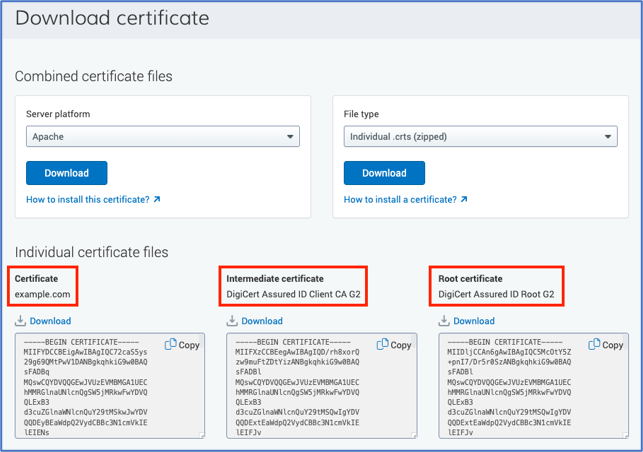
- In the Download certificate popup window, the download options include the full certificate chain:
- Your TLS certificate – in the screenshot, example.com.
- The issuing Intermediate CA (ICA) certificate - in the screenshot, DigiCert Assured ID G2 TLS RSA4096 SHA256 2022 CA1.
- The root certificate that issued the ICA certificate – in the screenshot, DigiCert Assured ID Root G2.
If the root certificate is DigiCert Assured ID Root G2, DigiCert Assured ID Root G3, or DigiCert Trusted Root G4, the TLS certificate is affected by the Google Chrome root removal.
Option 2: Build an Orders Report to identify affected TLS certificates
If you have access to the Report library in CertCentral, build an Orders Report to identify TLS certificates issued from the DigiCert Trusted Root G4, DigiCert Assured ID Root G2, and DigiCert Assured ID Root G3 hierarchies. See Build and edit an Orders report.
- In CertCentral, in the left menu, select Reports.
- On the Report library page, select Build a report.
- On the Build a custom report page, select Orders.
- Select your division scope.
- Under Choose your source, select your scope (divisions).
- All divisions
- Includes all from {{Primary division name}}
- Choose divisions and select the divisions to include in the report
- Select Next.
- Under Choose your source, select your scope (divisions).
- Schedule the report to run once and select certificate scope.
- Under Schedule report, select Once.
- In the Specify certificate requested date range menu, select All certificates to current date.
- Select Next.
- Configure the report details
- Under Choose columns and filters for orders report, in the Order details section, use the default selections.
- Expand the Certificate details section. Select Intermediate CA, Intermediate CA ID, and Root.
- Under Set column order, use the default order, sort it alphabetically, or arrange it manually.
- When ready, select Next.
- Configure notifications and report access.
- Under Notifications and access, expand Notify additional users.
- In the Add another user menu, select other users to notify when the report is generated and ready to download.
- Under Format, select one of the following: CSV, JSON, or Excel.
- In the Report name box, enter a name for the report.
- Select Build report.
When the report is ready, CertCentral sends the Report generated email, letting you know that it's ready to download. - On the Report library page, find your report and in its Action menu, select Download as CSV or Download (ZIP).
- Save the report and open the file with a program such as Excel.
- Use the Root and the Intermediate CA columns to identify the root hierarchy used to issue each TLS certificate.
- Use the Root column to identify the root hierarchy used to issue each TLS certificate. The Intermediate CA column can be used to identify the issuing ICA certificate.
TLS certificates with a Root value of DigiCert Assured ID Root G2, DigiCert Assured ID Root G3, or DigiCert Trusted Root G4 are affected by the Google Chrome root removal
-

The most-trusted global provider of high-assurance TLS/SSL, PKI, IoT and signing solutions.
-



-
© 2022-2026, DigiCert, Inc. All rights reserved.
Cookie Settings
